
Dressing room


The dressing room is a feature that appeared in patch 1.7, that allows you to preview how an equippable item will look when equipped without actually equipping it or even picking it up.
Also see:
- Dressing Room page in the Under Development section of the Official site. Since this feature is under development, this page may go away or move some time after it gets implemented.
Most of the info below comes from the link above.
How does the dressing room feature work?
- It is quite simple. Each time you see an icon for an object, even if you can't equip it, you can Ctrl+Left-Click on it and a new window will pop up, showing how you would look with that item equipped.
- Even better: you can use the same mechanism for any item linked in chat (trade, party, guild, whisper, etc).
- Last but certainly not least, the auction house interface has been revamped to get its own automatic dressing room window. Just check the *Display on Character box to activate the feature, and Left-Click on any item you want to see on your character.
Get the best of the dressing room
Vendors
Some may argue that you should almost never buy equipment from vendors. While this is usually true for pure stat-boosting items, some vendors sell fashionable clothes, such as colorful shirts. Use the dressing room to help you choose when to take the plunge and buy something you might otherwise have ignored!
Also remember that you can preview items you are unable to wear. Check in with the Battlegrounds or PvP vendors and see how good you will look after your rank or reputation has increased.
Tip: When you browse a vendor's wares and use the dressing room feature, you can close the vendor window, keep the dressing room window up and check out another vendor's wares. That way you can, for example, see how a certain weapon available at one vendor looks on you with a particular piece of armor available at another. You can even combine this with other methods, such as the chat link.
Chat
Any equipable item link can be previewed with the dressing room. To do so, just Ctrl+Left-Click on an item linked in chat. This technique is very useful to send "preview" links for things you can preview normally only on yourself. You can use it to link:
- Professions items from your professions recipe window.
- Quest items from your quest window.
Quest rewards
When you take a quest, you can now see how the reward will look on you. Ctrl+Left-Click on the icon and the dressing room window will pop up. If you want to show the new item's look to your guild mates or friends, you can Shift+Left-Click on the item's icon to display a link in a chat line, and they can then also see for themselves how it would look on their own characters.
Professions
You can use the preview with any recipe you know, with a Ctrl+Left-Click on the icon of the final product in your professions window. Tips: You can't preview the recipe's end result unless you have learned the recipe. But, you can always ask higher level crafters to /whisper you back with the item link.
If you want to avoid losing money and time when trying to sell crafted equipment, just link the item in chat to a prospective buyer. Keep your components handy to make that item on-demand instead of making one that may not sell.
Group loot
With the possibility of previewing loot in a group or raid when an item drops, never-before-seen fashion arguments might start occurring (e.g.: "But those purple pants will match my dinner set!"). Thus, it is very important to remember that it is always better to loot only after combat has finished and everyone who died has been revived. Otherwise, the time to roll could run out before anyone had a chance to preview and then roll. If you trust everyone in the group or raid, it is better to have the Master Looter option activated. The master looter can then provide everyone with the links.
Bank and inventory
When you organize your bank and your bags, it is not always easy to remember the exact appearance of your equipment. And, to equip everything you own can be a major pain. With the dressing room, just organize the items per bag, and if you want to see how they'd look, Ctrl+Left-Click on all of them. This will also help you to not click on "Binds when equipped" items and equip them only when you don't want to do so.
Auction House
As the example in the opening paragraph illustrates, using the dressing room feature in the auction house will help you make up your mind about which item to bid on. If two items are similar in stats, why not go for the one that will look better on you? Likewise, when you obtain "Binds when equipped" items in the world, the dressing room feature will help you decide whether you want to keep it for yourself or auction it off.
Backgrounds
Class
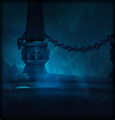
Death knight
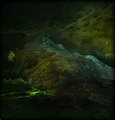
Demon hunter

Druid
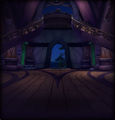
Hunter
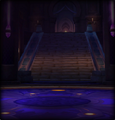
Mage
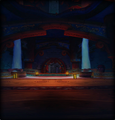
Monk
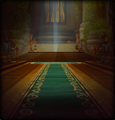
Paladin
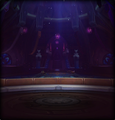
Priest
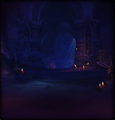
Rogue
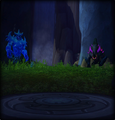
Shaman
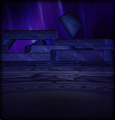
Warlock
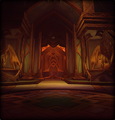
Warrior
.png)
.png)
.png)
.png)
.png)
.png)
.png)
.png)
.png)
.png)
.png)
.png)
Race

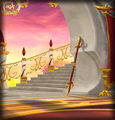
Blood elf
Draenei
Dwarf
Gnome
Goblin
Human
Night elf
Orc
Pandaren
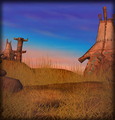
Tauren
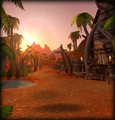
Troll
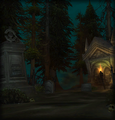
Undead
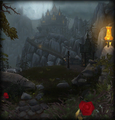
Worgen
.png)
.png)
.png)
.png)
.png)
.png)
.png)
.png)
.png)
.png)
.png)
.png)
.png)
Patch changes
 Patch 7.3.0 (2017-08-29):
- Window size has been enlarged, with a button in the upper-right corner added to switch between the new size and the classic size.
- Now displays class specific backgrounds (previously was racial, with exception of death knight and demon hunter).
- Patch 7.0.3 (2016-07-19): There is now the possibility to save Outfits to be used later at the Transmogrifier.
- Patch 1.7.0 (2005-09-13): Added.
| |||||||||||||||||||||||||||||||||||||


